AdventurePad Is Now Open to Everyone
Release of a new Hardware and Virtual interface to control your Yoto.
Picture a Saturday morning. Your four-year-old wakes up before you do. Instead of prodding you awake, they pad over to their bedside table, press the big glowing square with The Wild Robot on it, and the Yoto starts. You get another twenty minutes.
That's what AdventurePad is for.
After a few months in closed beta, AdventurePad is now available to every signed-in Daily Adventure family. If you log in today, you'll find it in the menu. No waitlist, no code needed. And if you're already set up from the beta, nothing has changed on your end.
Why it exists
Yoto already gives kids a lot of independence. Physical cards mean they can pick a story themselves without touching your phone. That's the whole point of the player, and it works brilliantly up to a point.
That point is roughly when you have a lot of cards. Forty, fifty, a hundred. Some are favourites that get played every week. Others are buried in a box somewhere. Some got lost. A four-year-old standing in front of a pile of cards isn't always empowered, sometimes they're just stuck.
There's also the question of content that doesn't have a physical card at all. Stories generated by Daily Adventure live on the app. So do plenty of other digital Yoto cards. Without a MYO card to assign them to, that content is only reachable from a parent's device. Which rather defeats the purpose.
AdventurePad solves both of those things. You pick the ten or fifteen cards and stories your child actually wants right now, put them on a grid, and hand it to them. Their favourites, always available, no hunting through a box, no borrowing your phone. That includes your Daily Adventure stories. No physical card needed.
What it actually is
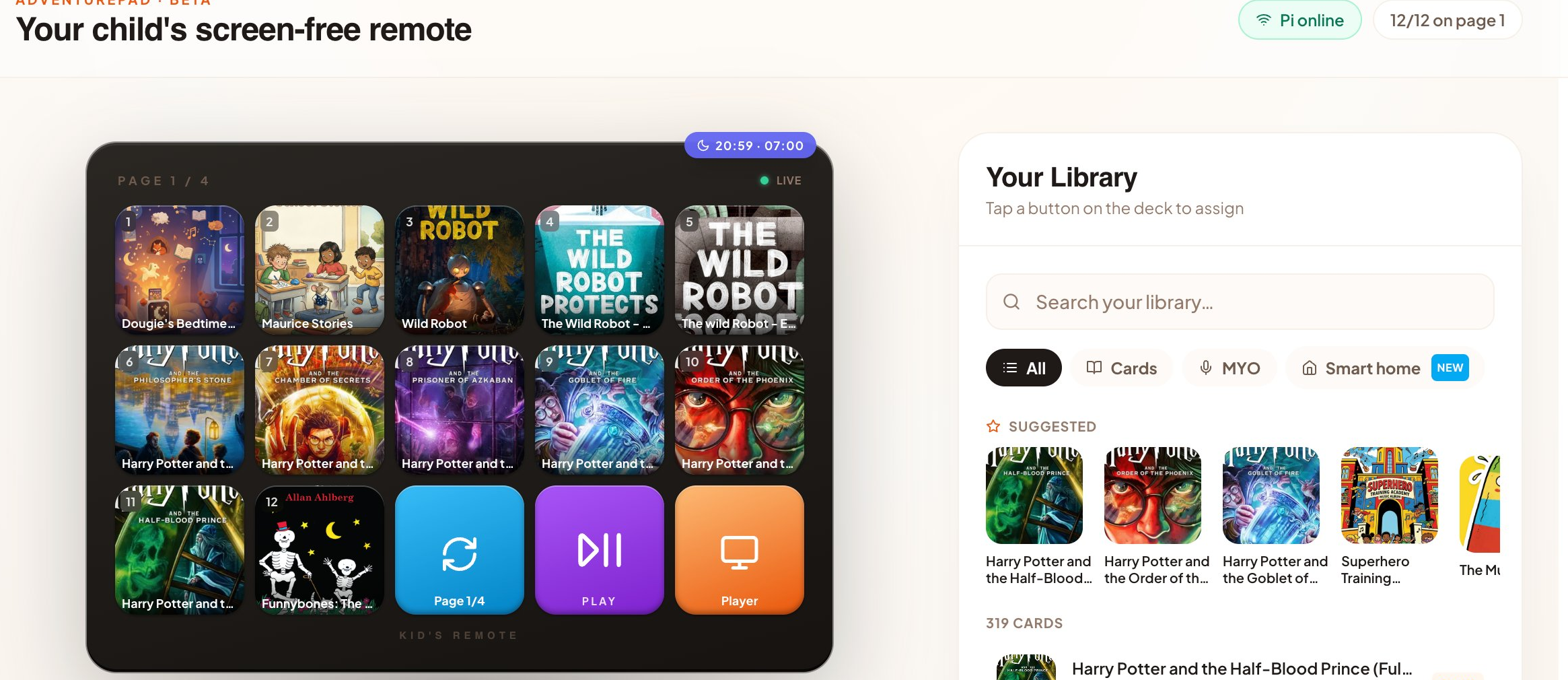
AdventurePad is your child's screen-free remote. A grid of buttons, each showing the cover art of a Yoto card or MYO playlist from your family's library. Press one and the Yoto plays. That's the core of it.
You set the buttons up from your account. What your child sees is just those squares. No menus, no settings, nothing else to press by accident.
There are two ways to run it. The original is a physical button pad that sits on a shelf or bedside table, with real clickable keys and a small screen on each one showing the cover art. The other is a web app that runs full-screen on any tablet or phone you've got spare. Same buttons, same setup, different hardware.
The Stream Deck version
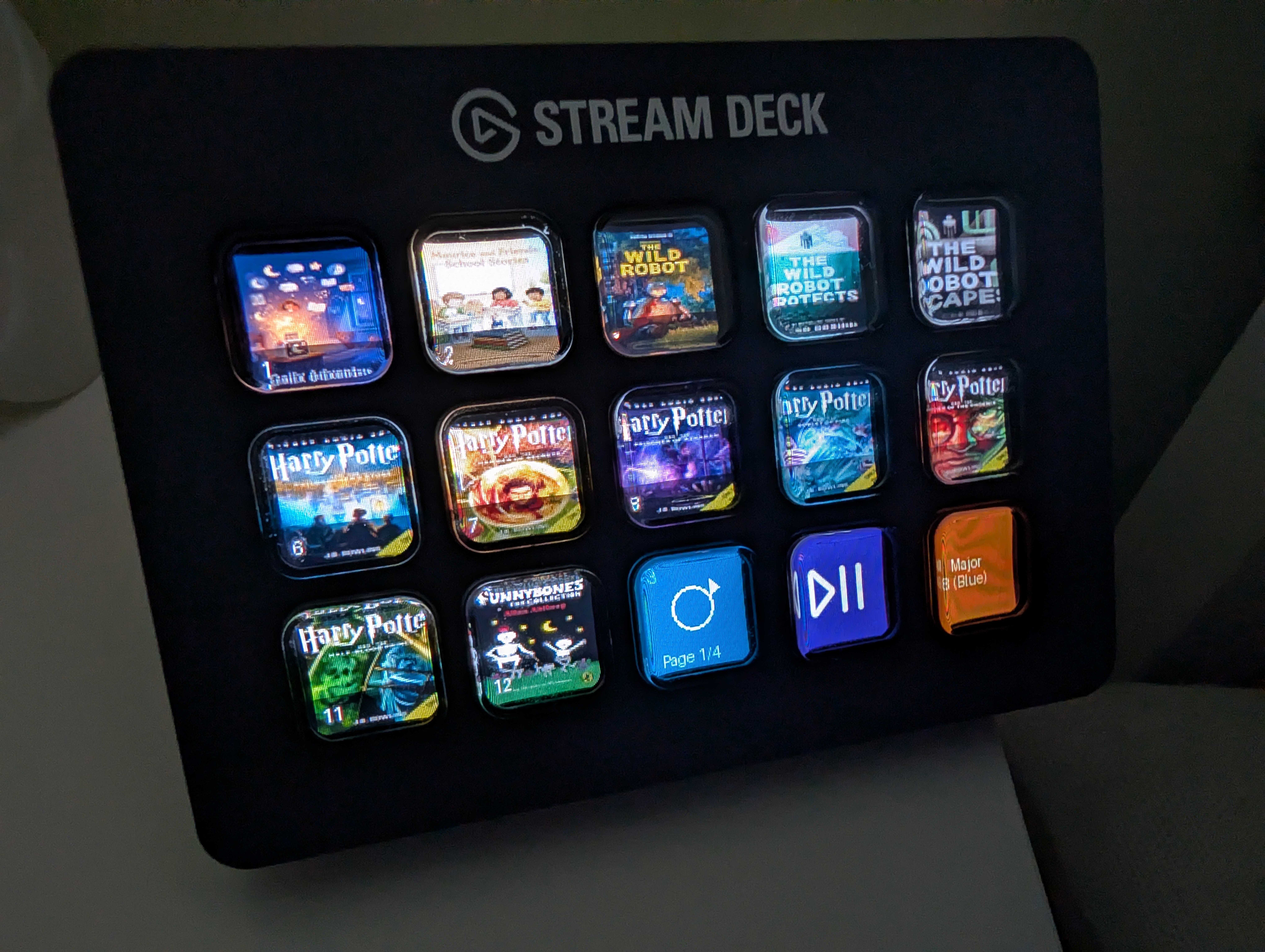
A Stream Deck is a programmable button pad made by Elgato, designed for video streamers but well suited to this. Each key has its own small LCD screen. We use the MK.2, which has 15 keys. Connected to a Raspberry Pi (a small, cheap computer you can tuck behind a shelf), it runs AdventurePad and shows your child's library as a grid of cover art. Press a key and it clicks. A real, physical click. The story starts.
Your child can see exactly which book is which without reading a label. Wild Robot looks like Wild Robot. Harry Potter looks like Harry Potter. If you've got more cards than buttons, a page-switcher key cycles through additional pages, so the full library is still reachable.
It's a weekend project rather than a plug-and-play purchase. The hardware will set you back around £150 for the Stream Deck and a Pi. But once it's set up it's solid, and kids take to the physical buttons in a way they don't quite take to a screen. The setup wizard includes everything you need, including the installer for the Pi. You can find the Stream Deck MK.2 on the Elgato website. We've also put together a full parts list if you want to know exactly what to buy.
The tablet version
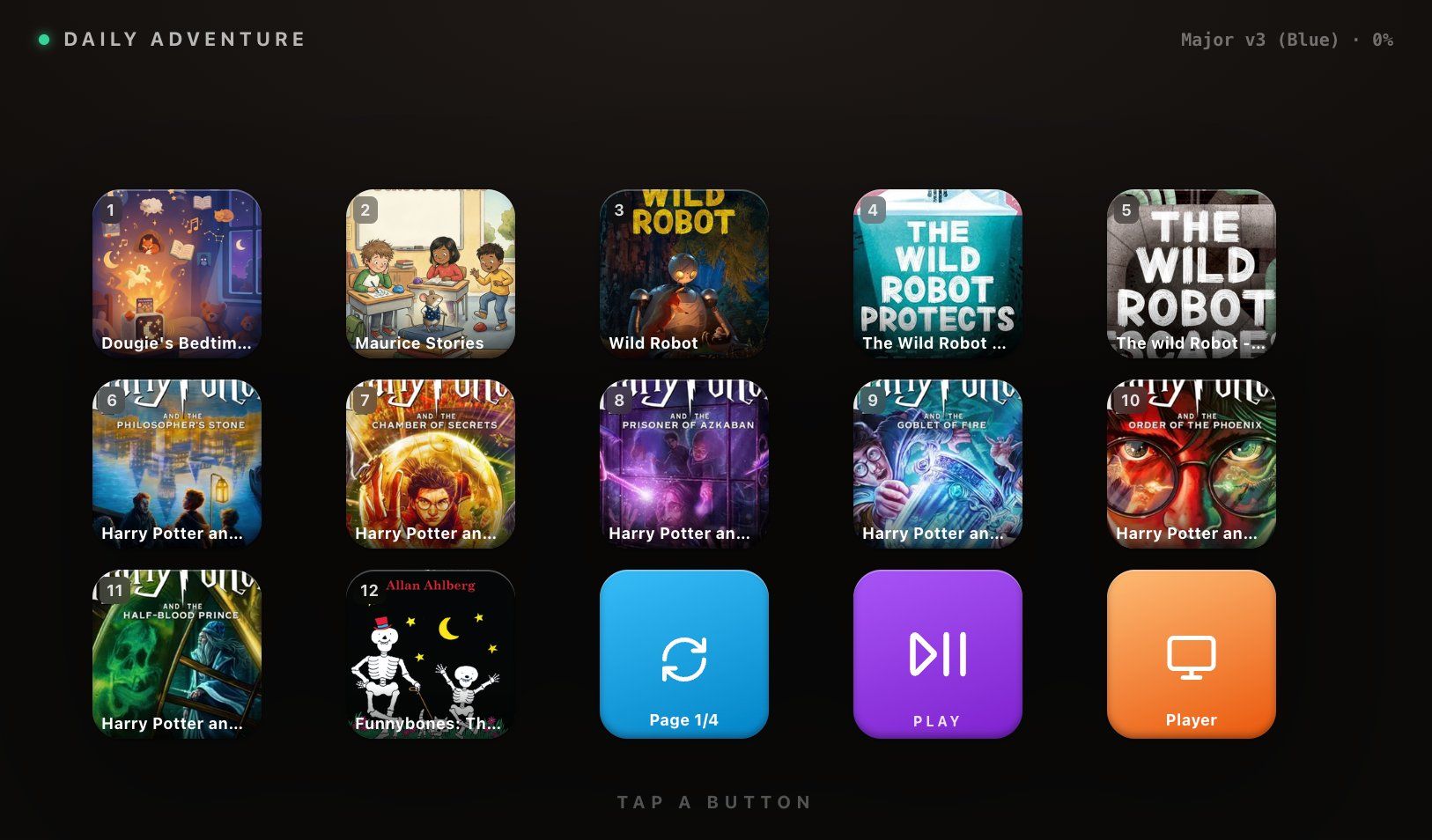
If the hardware route isn't for you right now, the web app is a genuinely good alternative. Install it as a home-screen icon on an iPad, Android tablet, Amazon Fire, or phone and it opens full-screen with no browser chrome. It looks just like the Stream Deck view, but on a touchscreen. Or bookmark the URL on a shared device for grandparents' houses or a guest room.
Either way it's the same buttons and the same setup. You can always start with the web version and add the hardware later.
Night mode
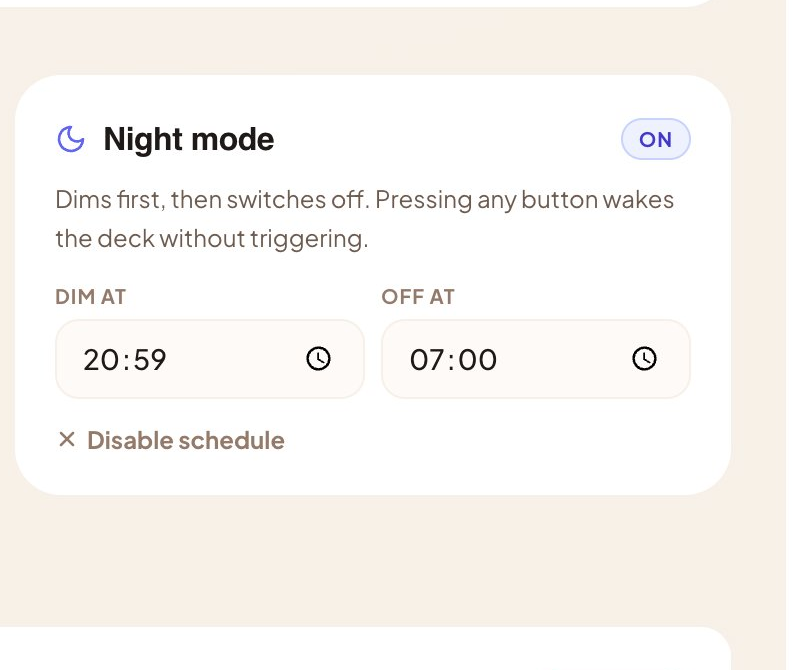
There's a Night mode built in. Set a dim time and an off time, and the deck fades down in the evening and switches off later. Pressing any key in the night wakes the display without triggering the button underneath. It's a small thing, but if the deck lives in a bedroom it's the kind of small thing that matters.
For Home Assistant households
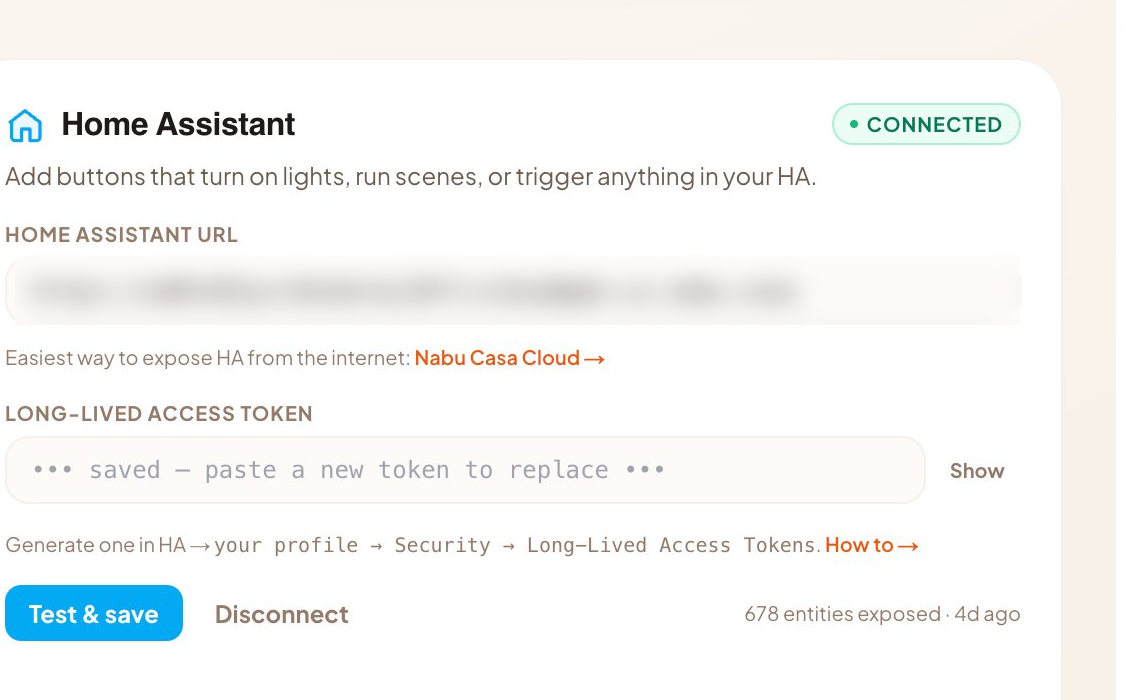
If your home runs on Home Assistant, you can mix smart-home buttons in alongside the Yoto cards. Lamp on, fairy lights off, a full bedtime scene. Entirely optional. The deck works fine without it.
Multiple decks
You can create more than one deck. One for your eldest with their particular obsessions, one for a younger sibling, a neutral one for the living room. Each deck is its own setup and targets its own Yoto player, so tapping a button on Ada's deck plays in Ada's room, not the kitchen one.
Getting started
Log in and open AdventurePad from the menu. A setup wizard walks you through the hardware or tablet path and pairs the device. Then assign a handful of cards from your library (the ones your child asks for most) and you're done.
We built AdventurePad because a lot of the morning and bedtime friction isn't about which story plays. It's about who has to make it happen. Handing that over to your child, in a way that's simple enough for a three-year-old, felt like the right problem to solve.
It's in your account now. Go have a look.